BackCheck Labs Team · Support
App Guide
Common questions, step-by-step instructions, and a full reference for every feature in BackCheck Labs Team.
Using the goalie-only app? See the BackCheck Labs Goalie guide →
Quick Reference — Gestures
| Gesture | Where | What It Does |
|---|---|---|
| Long Press | Team or Player card | Opens delete option |
| Long Press | Game row | "View Game Report" or "Delete Game" |
| Long Press | Clock (Live view) | Opens manual time entry |
| Long Press | Event in event log | Edit or delete the event |
| Drag | Bench player tile | Reorders the bench grid |
| Tap | Undo bar (8 sec window) | Undoes the last recorded stat |
What's Free vs Pro
| Feature | Free Trial | Pro |
|---|---|---|
| Game creation | 5 games | Unlimited |
| Live game tracking (Go Live / Recap) | Always allowed | Always allowed |
| Roster management | Unlimited | Unlimited |
| Completed game review | Always free | Always free |
| Season stats & leaderboards | Always free | Always free |
| Game & season reports | Always free | Always free |
| Share as image or CSV | Always free | Always free |
| Career stats (cross-season linking) | Always free | Always free |
| Delete started/completed games | Pro only | Allowed |
The trial counter is stored securely in the iOS Keychain and survives app reinstallation (but not a full device erase). Pro is an annual auto-renewing subscription — see the App Store for current pricing in your region. Cancel anytime in iOS Settings > Apple ID > Subscriptions.
Getting Started
1. Create Your First Team
Tap the + button in the top-right corner of the Teams screen. Enter:
- Team Name — e.g., "Ice Hawks"
- Season — auto-filled to the current hockey season (rolls over in September)
If you already have a team from a previous season, a Copy Roster From row appears. Select a prior team to copy all players forward. Copied players are automatically linked for career statistics — no manual setup needed.
2. Rename a Team
Open a team and tap the pencil icon in the top-right toolbar. You can update both the team name and season label from there.
Tip: Long-press any team card on the Teams list to delete it.
Players
Adding Players
Open a team and go to the Players tab. Tap + to add a player:
- Name and Jersey Number — numbers are sorted ascending automatically
- Position: Forward (blue), Defence (red), Goalie (orange)
- Designation: Captain (C), Alternate Captain (A), Affiliate (Aff), or None
Designations appear as coloured badges on player cards and in the live bench view.
Finding Players
Use the search bar at the top of the Players tab to filter by name or jersey number. The position summary bar below the search shows your Forward / Defence / Goalie count at a glance.
Tip: Long-press any player card to delete.
Games
Creating a Game
Go to the Games tab and tap +. Set:
- Opponent name
- Game Type: Exhibition, Regular Season, Tournament, or Playoff
- Home or Away
All game types — including Exhibition — count toward your W-L record and all leaderboards.
Game Row Actions
| Action | How |
|---|---|
| View completed game detail | Tap the row |
| Start live stat tracking | Tap the gold Live capsule |
| Reopen a completed game to add stats | Tap the Recap capsule |
| View Game Report or Delete | Long-press the row |
Live Game Tracking
The live game view opens full-screen. Scroll down to see the bench, stat panel, penalty timer, and event log all on one page.
Clock Controls
| Control | Action |
|---|---|
| Tap the clock | Start or stop the game clock |
| +5 / -5 buttons | Nudge the clock by 5 seconds |
| Long-press the clock | Enter an exact time manually |
| Period label | Shows the current period (P1, P2, P3, OT…) |
The clock counts down. At 0:00, the period advances automatically. If the score is tied after Period 3, an overtime period starts. A green banner appears when the game ends in a non-tied regulation score.
Strength Situation
The ES / PP / PK chip shows the current strength situation.
- When you record a Penalty, the situation switches to PP or PK automatically based on which team committed it.
- A penalty timer appears and counts down. Tap it to adjust the duration.
- Tap the ES / PP / PK chip at any time to change the situation manually.
Bench & Shifts
Managing the Ice
- Tap a player tile to put them on the ice (shift starts) or take them off (shift ends, TOI recorded).
- Tapped someone off by mistake? Tap them straight back on within 5 seconds and their shift carries on as one shift, with no lost time.
- Drag a player tile to a different slot to rearrange your bench layout — your preferred order is remembered.
- Active (on-ice) players are highlighted. Inactive players are dimmed.
Scratches
Scroll down past the bench grid to the Scratches section. Tap a scratched player to unscratch them and return them to the bench.
Goalies
Goalies appear in their own section below the skater bench. Tap the goalie tile to designate them as active (on the ice). The active goalie is automatically assigned to Save and Opponent Goal events.
Recording Stats
Tap a stat button in the panel, then tap the player on the bench who earned it.
Stat Panel Reference
| Stat | Notes |
|---|---|
| Goal | Clock pauses. Tap the scorer, place on rink (optional). Record Assists separately afterward. |
| Assist | Tap after recording a goal. Tap each assisting player individually. |
| Shot | Tap the shooter, then place on the rink (optional). |
| Save | Auto-assigned to your active goalie. No player tap needed. |
| Faceoff Won / Lost | Tap the player who won or lost. Faceoff % is computed in the Stats tab. |
| Penalty | Tap the penalized player, choose duration. Shift ends immediately; PP/PK activates. |
| Opp Goal | Auto-assigns your active goalie. Place on rink (optional). Clock stops. |
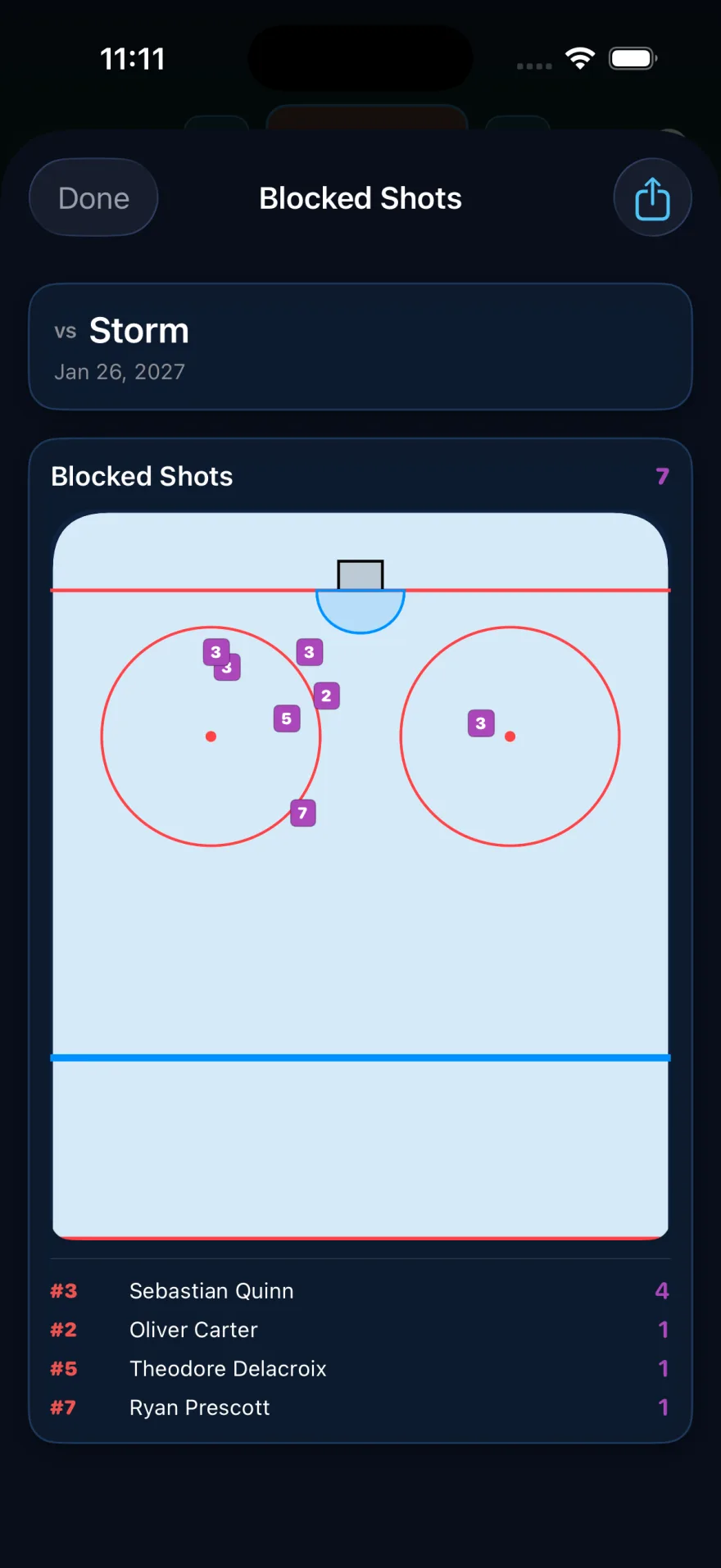
| Block | Tap the player who blocked it, then place the block on the rink. Blocks appear on their own map in the Game Report. |
| Hit / Takeaway / Giveaway | Tap the player. Optional — enable or disable in Settings. |
Undo
An undo bar appears at the top of the screen for 5 seconds after every recorded stat. Tap it to immediately remove the last event. While the clock is stopped it stays up, so there's no rush after a goal that gets called back. Once it clears, use the event log instead.
Editing After the Fact
Long-press any event row in the event log at the bottom of the live view (or in Game Detail) to edit the player, period or clock time, or to delete the event entirely.
- Shifts — change the player, when the shift ended, or how long it lasted. Time on ice moves with it.
- Goals and goals against — fix the strength (ES, PP or SH). PP%, PK% and +/- update to match.
- Overtime — any event can be moved into OT.
- Saves and goals against — the player list shows just your goalies.
- Power plays and penalty kills — change the start time of one that's still running and the countdown on its button moves with it.
Rink Location Picker
After tapping certain stats (Goal, Shot, Missed Shot, Save, Block, Opponent Goal), a rink diagram appears so you can mark where the play occurred. These markers appear on the ice sheet in the Game Report. Tap Skip if you don't want to record a location.
Net Placement — Step 2
For shots, goals and saves the rink tap is step 1 of 2. A net diagram follows so you can record where in the net the puck went:
- Goal — "Tap where it beat the goalie"
- Missed shot — "Tap where it missed," including outside the posts (wide or over)
- Save / shot on net — tap where the goalie handled it
Tap Skip at any step to record the event without a location; Back returns you to the rink tap. These taps are what build the Net Placement maps in the Game Report.
Optional Stats
In Settings, toggle Hit, Block, Takeaway, Giveaway, Pass and Missed Shot on or off. A preview grid shows exactly how your panel will look. Fewer active stats means larger, easier-to-tap buttons.
Game Detail
Tap any completed game row to open Game Detail. This view is always free to access regardless of trial or subscription status.
What You'll See
- Nav bar — shows the final score inline, e.g., "vs Falcons 3–2"
- Score card — period-by-period breakdown
- Player stat rows — G / A / Pts, Shots, Saves, TOI, and more per player
- Goalie period card — Saves, Goals Against, and SV% per period
- Event log — full chronological list with period filter chips
Toolbar
| Button | Action |
|---|---|
| Gold play button | Reopen in Live view (add or fix missed stats) |
| Chart/document icon | Open Game Report |
Game Report
The Game Report generates a full scoring table similar to an official game sheet.
To open:
- Long-press a game row on the Games list → tap "View Game Report"
- Or open Game Detail → tap the report icon in the toolbar
Tap Share to generate a PNG image and CSV file and send both through the iOS share sheet (email, AirDrop, Files, etc.).
Shot Chart
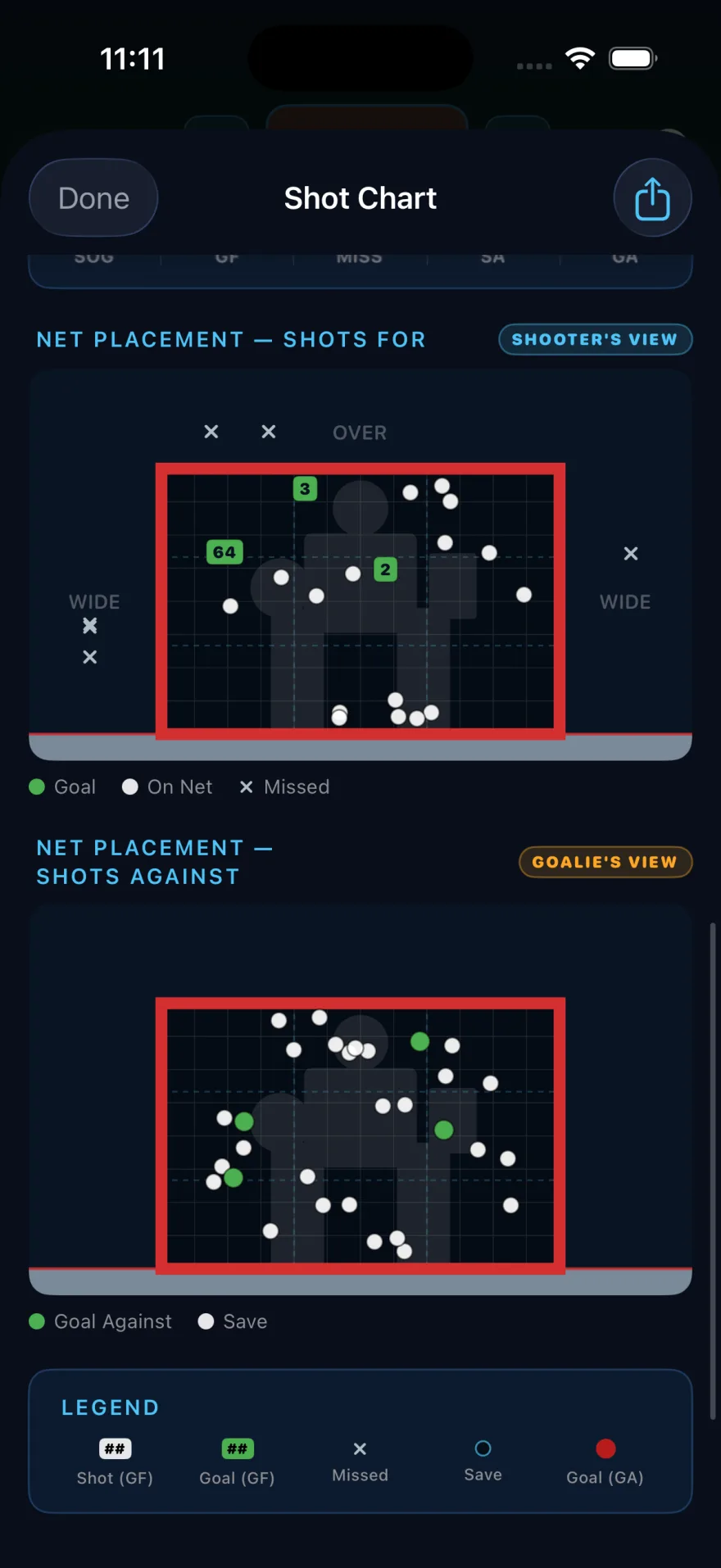
Scroll past the scoring table for the Shot Chart — every shot you placed on the rink, plotted on a full ice sheet, with a summary strip underneath:
SOG · GF · MISS · SA · GA
Each marker is numbered, and the same number identifies the same shot on every chart — so you can follow one shot from the rink to the net.
Net Placement
Two net diagrams, built from your step-2 taps. Both are drawn facing the net, the same way you tapped them, so top left always means the same corner:
- Shots For — where your team put the puck. Green = goal, white = on net, ✕ = missed. Misses outside the frame are labelled WIDE or OVER.
- Shots Against — what your goalie faced. Green = goal against, white = save.
Every net chart in the app, including the goalie's, is drawn this way and labelled Facing the Net.
Blocked Shots
Every block you placed appears on its own rink map, colour-coded by player, with a count per player underneath — so the defenders who wear the puck get credit alongside the scorers.
Season Stats
Open a team and tap the Stats tab.
Record Strip
Shows your W-L-OT record. Tap a game type chip (Regular Season, Playoff, etc.) to filter the view.
Leaderboard
Tap any stat category chip to reorder the leaderboard. Available categories:
+/- note: Only even-strength goals count toward a player's plus/minus. Power play goals and penalty kill opponent goals are excluded.
Player Season Summary
Tap any player row to open their full season breakdown: a game-by-game stat log and a Career grid showing aggregate totals across all linked seasons (shown automatically when a player was cloned from a prior season's roster).
Ice Tilt
Above the leaderboard, Ice Tilt shows the share of total shots in the game that belonged to your team — shots for, against shots for plus shots against. Over 50% means you carried the play; under means you were outshot. The bar reads blue for shots for against red for shots against, with raw SF and SA totals beneath it.
Special Teams
Below the leaderboard, the Special Teams section shows PP record (goals / opportunities and PP%) and PK record (goals against / opportunities and PK%).
Season Report
Tap the chart icon in the toolbar to open the Season Report — skater stats, goalie stats, and special teams in one document. Tap Share to export as PNG + CSV.
Settings
Open Settings via the gear icon on the Teams screen (top-left corner).
| Setting | Description |
|---|---|
| Optional Stats | Toggle Hit, Block, Takeaway, Giveaway on/off |
| Live Panel Preview | See how your stat grid will look with current toggles |
| Help & Guide | This help screen |
| Subscription | Trial progress, upgrade button, Restore Purchase |
| About | App version and build number |
Career Stats & Season Linking
When you create a new team and copy a roster from a previous team, each copied player is linked to the original by an invisible career ID.
- Linked players show a Career grid in their Player Season Summary, aggregating all seasons.
- The link is established at copy time — players added manually to the new team are independent unless linked via the player copy flow.
- Deleting a prior season's team does not break the career link on the copied players.
Frequently Asked Questions
Does the app work offline?
Yes. BackCheckLabs works fully offline — all data is stored on your device. Your stats are always available, even at rinks with no cell signal.
How do I set period lengths?
When creating a new game, tap the period length field for each period (P1, P2, P3). Standard is 20 minutes but you can set any length for minor hockey formats. You can also edit them after the game has been created by long-pressing the game in the Games tab and choosing "Edit Game".
What does +/- mean?
+/- (plus/minus) measures a player's impact on goals scored vs. goals allowed while they're on the ice at even strength. A +1 means your team scored one more even-strength goal than the opponent during their shifts. Power play goals and penalty kill opponent goals are excluded.
Does my data sync across devices?
Not yet — your data is stored locally on this device, and there is no cloud sync between devices. iCloud sync is on our roadmap. Your Pro subscription does carry across devices via Restore Purchase in Settings, but your game data stays put.
If I lose my phone, do I lose my stats?
Your stats live in the app's own storage, which iOS includes in your normal device backup — iCloud Backup if it is switched on, or an encrypted backup to your computer. A device set up from that backup should bring the app and its data with it. We have not formally tested a full restore, so if a season really matters to you, use the export feature as well: the Game Report and Season Report both export as PNG and CSV, and those files are yours wherever you put them.
Do I have to record net placement for every shot?
No. Net placement is the optional second step after the rink tap — tap Skip and the shot is still recorded, it just will not appear on the Net Placement maps. You can also skip the rink tap entirely and only the count is kept.
What is the difference between shooter's view and goalie's view?
They are the same net seen from opposite sides. Shots For uses shooter's view, the way your scorers see the net. Shots Against uses goalie's view, the way your goalie faces it. Mirroring them means each person reads the chart from the angle they actually play it.
What counts as Ice Tilt?
Ice Tilt is your share of all shots in the game — shots for divided by shots for plus shots against. Above 50% means you carried the play; below means you were outshot. It is a quick read on territorial play that the score alone will not show you.
Do Exhibition games count in my record?
Yes. All game types — Exhibition, Regular Season, Tournament, and Playoff — count toward your W-L record. Use the game type filter chips in the Stats tab to view the record for a specific type only.
Do my 5 free games reset if I reinstall the app?
No. The trial counter is stored in the iOS Keychain, which is preserved across reinstalls. It is only cleared if you erase your device and set it up as new.
Can I edit a stat after the game is over?
Yes. Open Game Detail, long-press any event in the event log, and choose "Edit Event" or "Delete". You can also reopen the game in Live view via the gold play button in the toolbar.
How is Time on Ice (TOI) calculated?
TOI is the sum of all Shift events for a player in a game. A shift event is recorded each time you tap a player tile on the bench to put them on or take them off the ice. Partial shifts at the end of a period are also recorded.
What does cloning a roster do exactly?
Cloning copies all players (name, number, position, designation) from a previous team into a new team. It also sets each copied player's internal career ID so their stats across both seasons are aggregated in the Career grid automatically.
How do I record a shorthanded goal?
Record the goal normally while the strength situation chip shows PK. The app labels it accordingly in the event log.
Can I use the app for multiple teams at once?
Yes. Each team is completely independent. Return to the Teams list to switch between them.
The Live button on a completed game shows "Recap" — what does that do?
Recap reopens the completed game in the live view so you can add any stats that were missed during the original session. The game's final score and period remain intact.