BackCheck Labs Team · Getting Started
How It Works
One parent volunteer or coach, one iPhone, the whole team tracked — and reports in the coach's hands before the second period starts. Here's exactly how it works.
Tracking just your goalie? See the BackCheck Labs Goalie workflow →
Set Up Your Team & Season
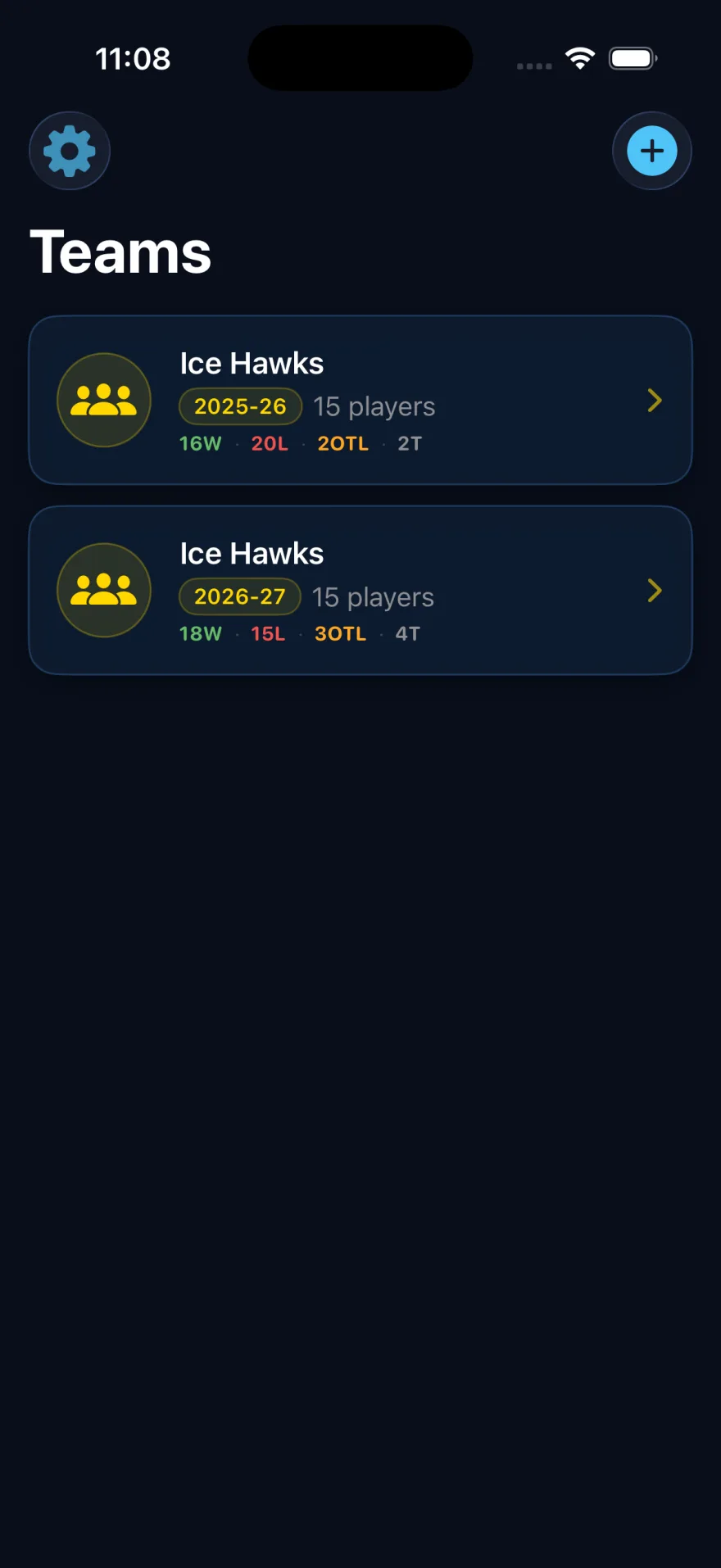
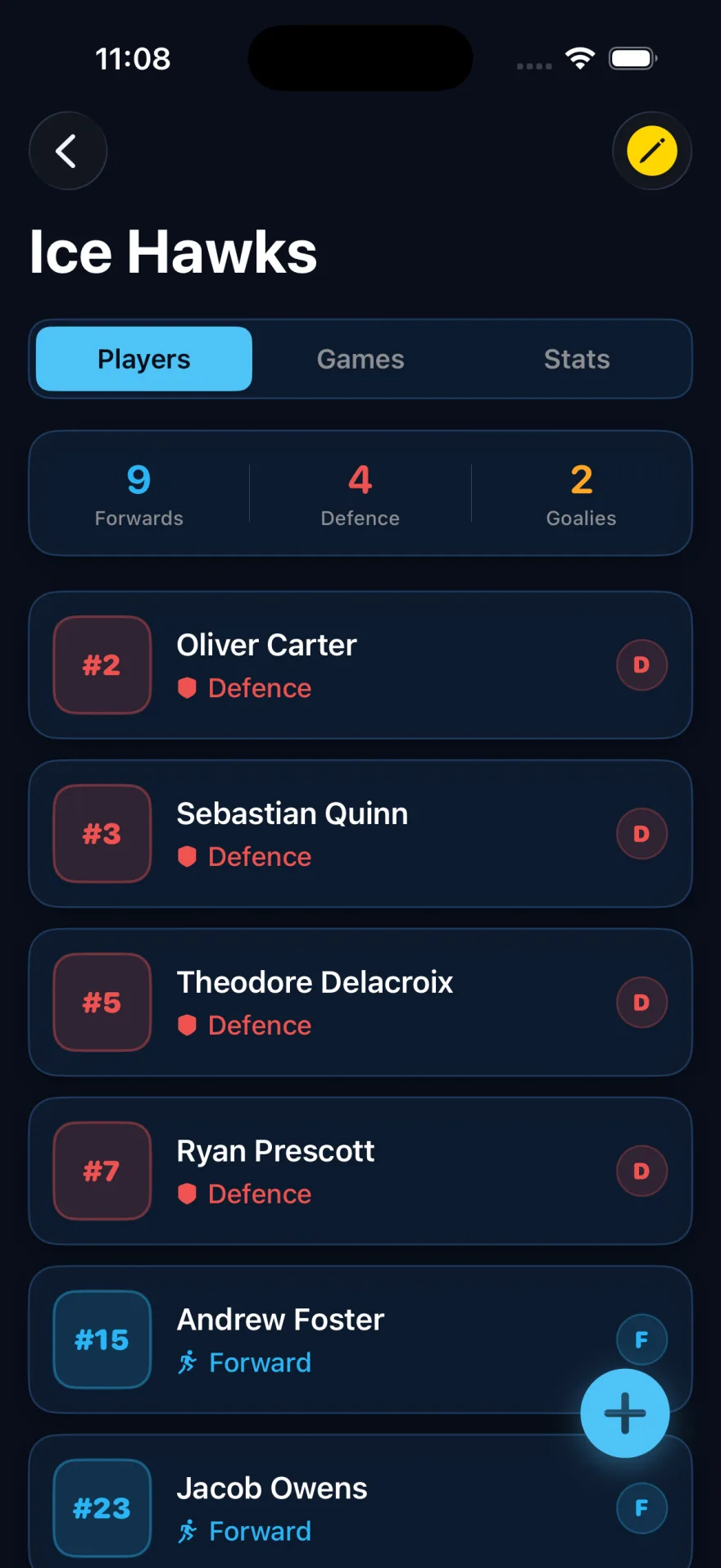
Create season and add your roster — every skater and your goalie. Choose Exhibition, Regular Season, Tournament, or Playoff game. Set period lengths to match your league format. Done in minutes, used all year.
Create a Game Before Puck Drop
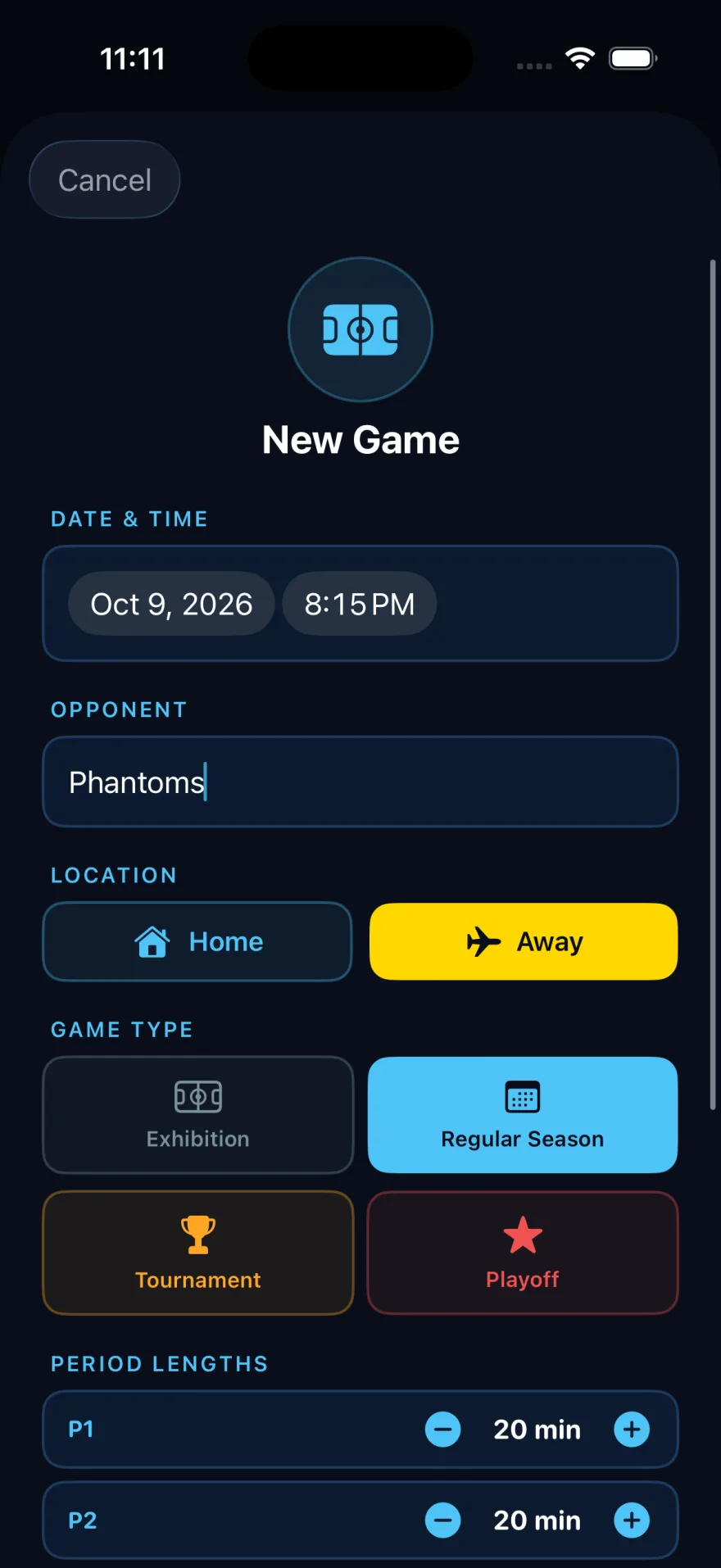
Tap "New Game", enter your opponent, select Home or Away, pick the game type, and confirm the period lengths. Takes under 30 seconds — plenty of time during warm-up.
Track Every Player in Real Time
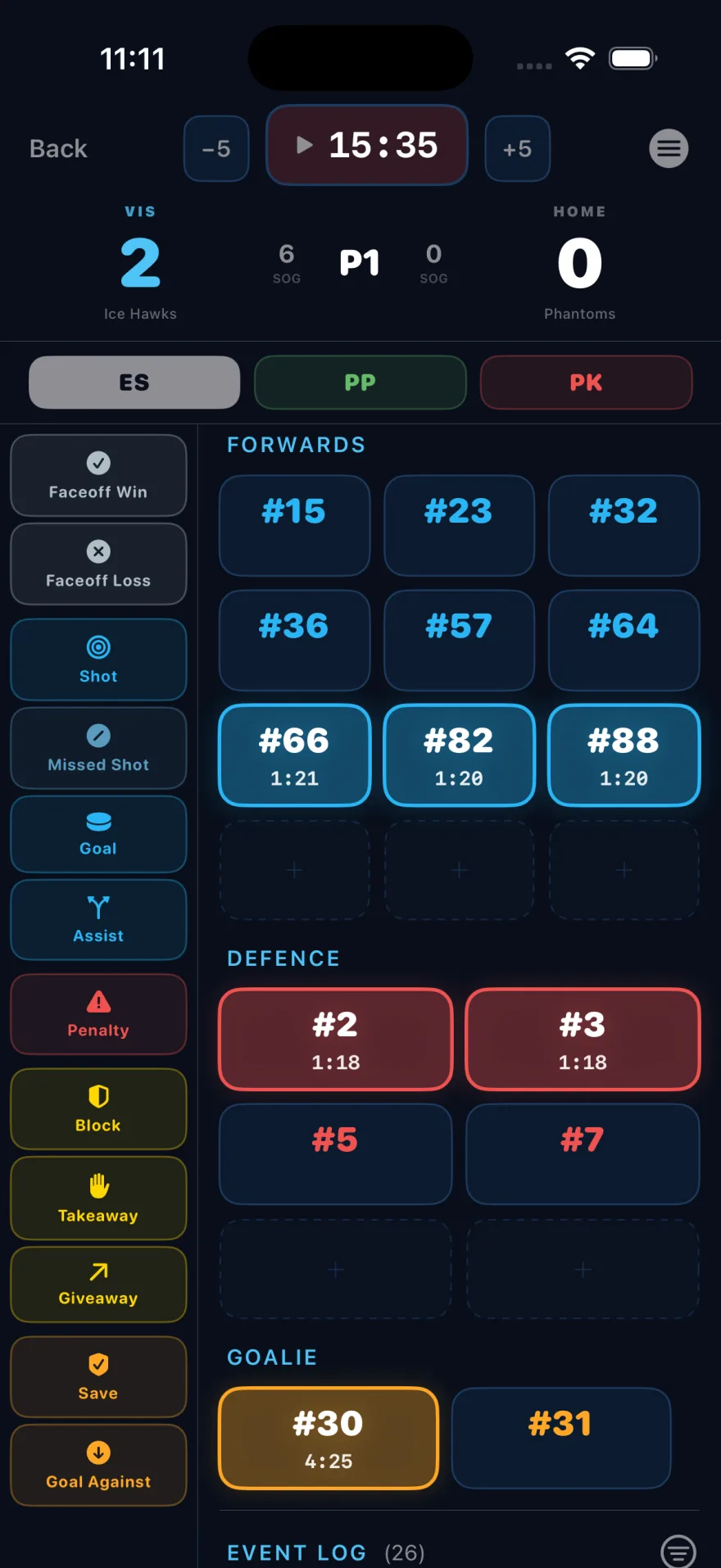
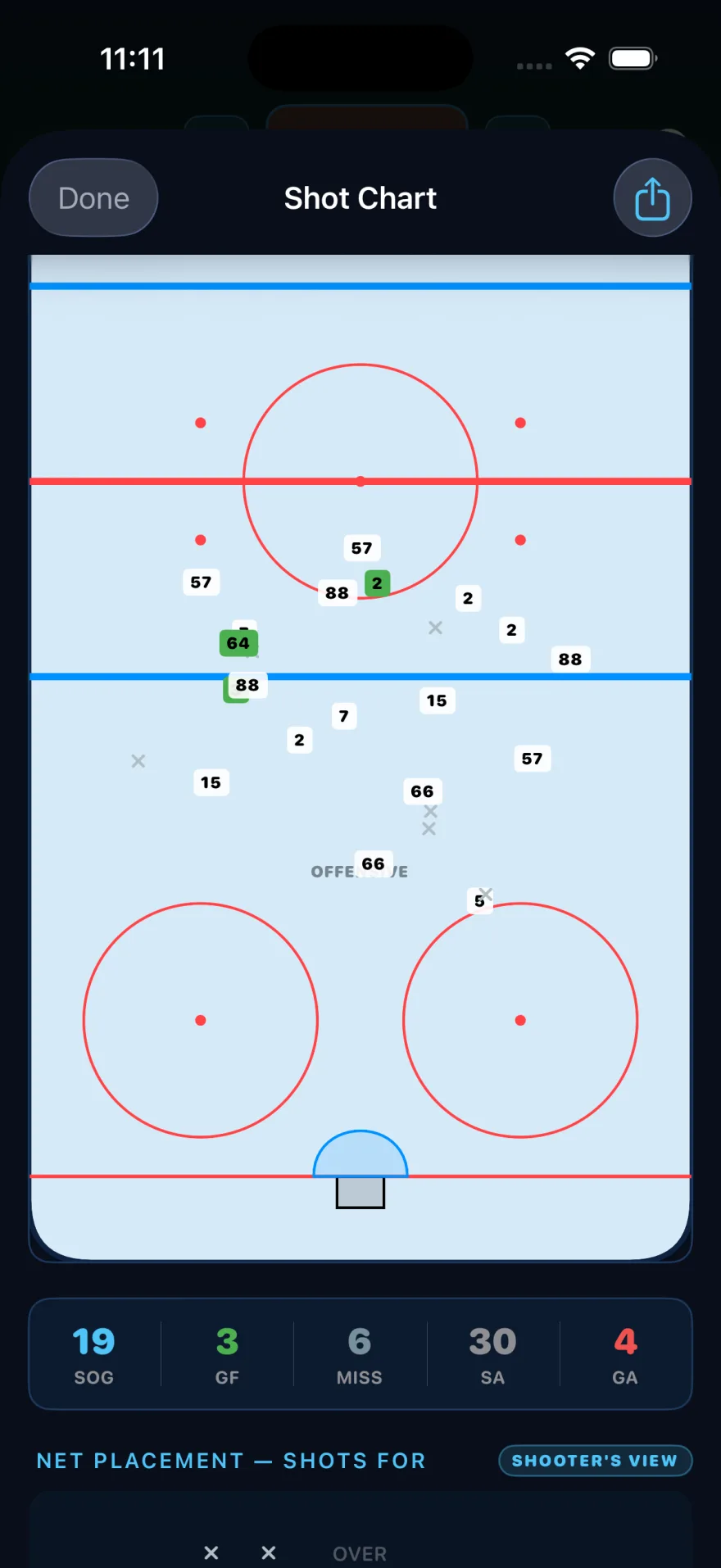
Log goals, assists, shots, penalties, face-offs, and shot locations for every skater as play unfolds. Track saves, goals against, and shot quality for your goalie too. Designed for one-handed use — no fumbling during line changes.
Share the Intermission Report
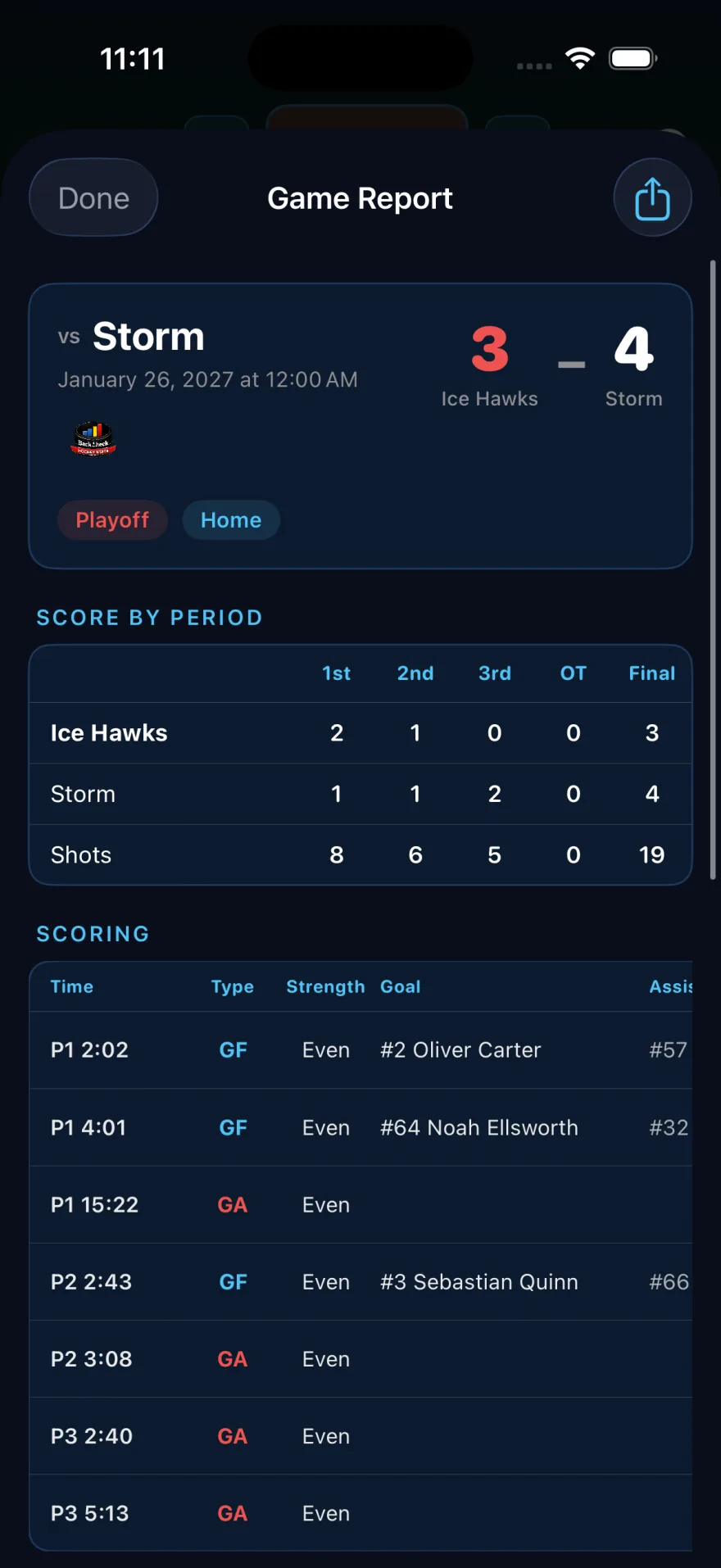
Between periods, send the coach a full game stat report — skater totals, shot locations, goalie performance — straight from the app. No paper, no clipboard, no waiting.
Review & Clean Up After the Game
After the final buzzer, review the complete team box score. Edit anything you missed in the moment. All stats save automatically — your data is always there.
Share Season Reports Anytime
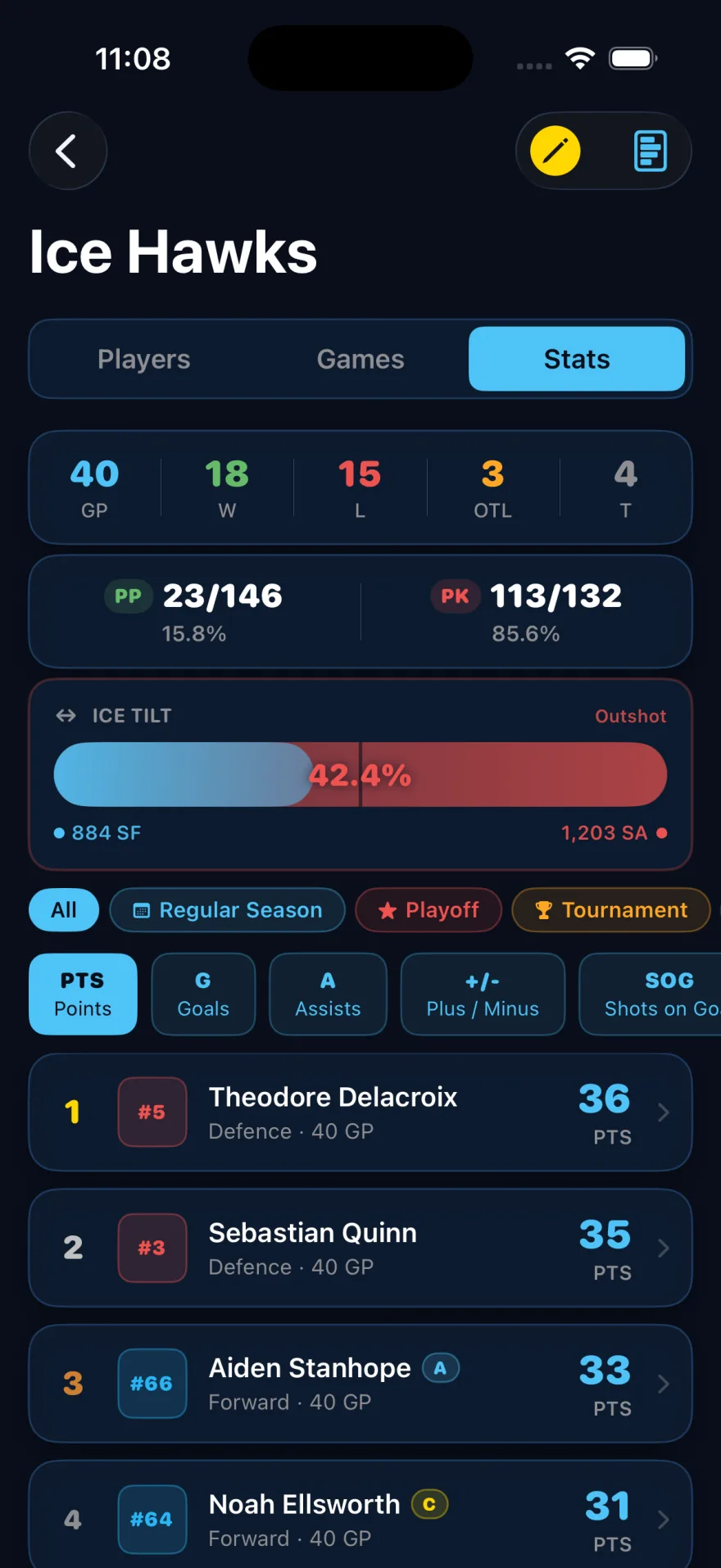
Generate a full team season report with one tap — cumulative stats, per-game averages, goalie summary. Share it with coaches for player reviews, showcases, or year-end feedback.
Where Your Data Lives
No Account. No Cloud.
There's nothing to sign up for. You don't hand us your team's roster, and we couldn't look at it if we wanted to — there's no server on our end at all.
It lives on your phone
Every team, roster, game and stat is stored on the device, in the app's own storage. Nothing is transmitted to BackCheck Labs or anyone else, and the app works fine in a rink with no signal.
It rides along in your backup
Like most app data, it's included in your normal device backup — iCloud Backup if you have it on, or an encrypted backup to your computer. That backup is Apple's, under your Apple Account. We have no access to it.
And you can take it with you
Game and season reports export as PNG and CSV straight from the app. For a season you care about, export it — that file is yours, independent of any phone or backup.
What we don't have yet is sync between devices — stats tracked on one phone stay on that phone. It's on the roadmap. Full detail in the privacy policy.
Ready to Try It?
Get BackCheck Labs Team on your iPhone before the next game.
Want more detail on every feature?
The full Team app guide covers every screen, gesture, stat, and setting.